
Missing a pill, forgetting a bill payment, or losing track of your child's school schedule can cause real problems. A missed medication dose can disrupt a treatment plan. A late bill adds fees you never budgeted for. The frustrating part is that these situations are almost entirely preventable. Your phone already has powerful tools built right in. This guide walks you through everything you need, from choosing the right app and setting your first alert to troubleshooting common failures and building a system that actually sticks.
Table of Contents
- What you need to set reliable reminder alerts
- Step-by-step guide: Setting up reminder alerts on your device
- Troubleshooting and common mistakes when setting reminders
- Best practices for reminders: Verification and staying organized
- Why the simplest reminder is often the most effective
- How ReMoe makes reliable reminders effortless
- Frequently asked questions
Key Takeaways
| Point | Details |
|---|---|
| Prep matters | Allow notifications, enable permissions, and pick the right app before starting your reminders. |
| Platform steps differ | Each app has a unique way to create, repeat, and manage reminders—follow tailored instructions. |
| Common errors are fixable | Most missed reminders are caused by silenced phones, permissions, or series settings—troubleshooting helps. |
| Verification reduces misses | Check off reminders, enable follow-ups, and review history to avoid missed tasks. |
| Simplicity boosts success | Choose clear, easy-to-check reminders and routines for the best reliability. |
What you need to set reliable reminder alerts
Before you set a single alert, it helps to understand your options. Not every platform works the same way, and picking the wrong tool for your situation means you might still miss what matters.
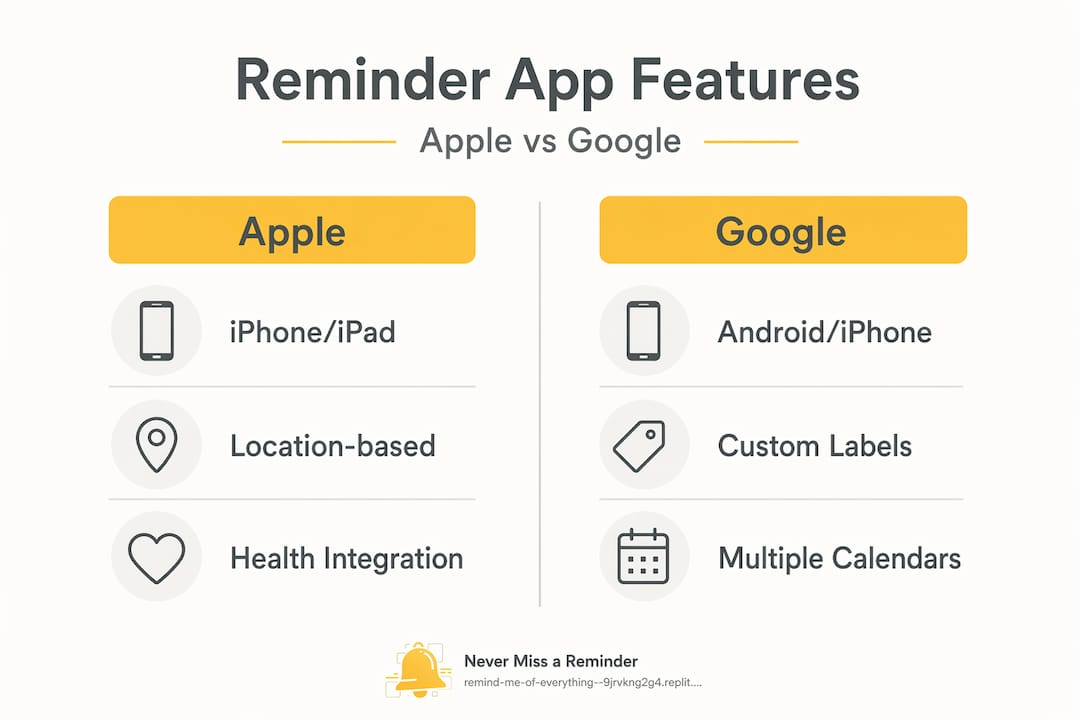
The two most common systems are Apple (for iPhone and iPad users) and Google (for Android and cross-platform users). Both handle reminders well, but they work differently. On iPhone/iPad, you can create and control Reminders alerts with time-based triggers, location-based triggers, and alarm behavior settings. Google Keep reminders on Android support timed alerts and route notifications to Google Tasks, Google Calendar, or Keep itself depending on how you set them up.
Here is a quick comparison to help you decide where to start:
| Feature | Apple Reminders | Google Keep / Tasks / Calendar |
|---|---|---|
| Device | iPhone, iPad, Mac | Android, iPhone, Web, any browser |
| Time-based alerts | Yes | Yes |
| Location-based alerts | Yes (requires Location Services) | Google Calendar only |
| Recurring reminders | Yes (daily, weekly, monthly, custom) | Yes (Google Calendar and Tasks) |
| Follow-up alerts | Yes (via Apple Health for medication) | Limited |
| Default alert time (no time set) | 9:00 AM | 9:00 AM |
| Works offline | Yes | Partial |
Both systems cover the most common everyday needs. These include medication schedules, bill payment dates, doctor or dentist appointments, children's school events, and car maintenance. Supporting all-in-one reminders for all of these in a single place makes life significantly easier than juggling multiple apps.
Common reminder needs most people overlook:
- Taking daily or twice-daily medication at the right time
- Paying monthly bills before the due date (not just on the due date)
- Scheduling and attending follow-up medical appointments
- Remembering children's extracurricular pick-up and drop-off times
- Recurring tasks like refilling prescriptions or checking smoke detector batteries
Pro Tip: Before setting up any reminder, go to your phone's Settings > Notifications and make sure your reminder app is allowed to send alerts. Also check that Location Services are on if you plan to use location-based reminders. Many people spend time setting reminders only to discover the app was never permitted to notify them.
The difference between time-based and location-based reminders matters. A time-based reminder fires at a specific clock time: 8:00 AM every day to take your medication, for example. A location-based reminder fires when you arrive at or leave a specific place: a reminder to pay a bill when you walk into your bank, or a reminder to grab your child's permission slip when you leave home. Both types have real, practical uses depending on the task.
Step-by-step guide: Setting up reminder alerts on your device
With your apps and permissions ready, follow these clear instructions to set up reminders that fit your needs.
Setting a reminder on Apple Reminders (iPhone or iPad)
Time-based recurring reminder:
- Open the Reminders app and tap the list you want to use (or create a new one).
- Tap the + button to add a new reminder.
- Type your reminder text, such as "Take blood pressure medication."
- Tap the info button (the circle with an "i") next to your reminder.
- Toggle on Date and set your desired date.
- Toggle on Time and select your alert time (for example, 8:00 AM).
- Tap Repeat and choose a frequency: daily, weekly, monthly, or a custom option.
- Tap Done to save.
Location-based reminder:
- Follow steps 1 through 4 above.
- Toggle on Location instead of (or in addition to) time.
- Search for an address or tap Current Location.
- Choose whether the reminder fires when you arrive or leave.
- Tap Done.
For medication specifically, Apple has a dedicated tool. Medication reminders in Apple's Health app let you go to Medications inside the Health app, tap Options, and turn on Dose Reminders. This is more powerful than a standard reminder because it tracks whether you actually logged the dose. If you do not log it within 30 minutes, a follow-up alert arrives automatically. This is a meaningful safety net for seniors or anyone managing complex medication schedules. This kind of personalized reminder setup can genuinely change outcomes for people who need to take medication consistently.
Setting a reminder on Google Calendar or Google Tasks (Android)
Set reminders in Google Calendar/Tasks with the following steps:
Google Tasks (simple task reminder):
- Open Google Calendar and tap the + button.
- Select Task.
- Type your task name and add a description if needed.
- Tap Date and time and set when you want the alert.
- To make it recurring, tap Repeat and select your frequency.
- Tap Save.
Google Calendar (event reminder with notification):
- Open Google Calendar and tap a time slot.
- Select Event, then add a title.
- Set the date, time, and location.
- Tap Add notification and choose how far in advance you want the alert (for example, 1 day or 1 hour before).
- Tap Save.
Pro Tip: For critical tasks like medication or bill payments, use both a time-based reminder and a location-based one when possible. Set your medication reminder for 8:00 AM every morning, and also set a location-based alert tied to your home address so that if you leave without taking it, your phone nudges you. For reminders for medication and children, layering two alert types adds a safety cushion you will be glad you have.
Troubleshooting and common mistakes when setting reminders
Once your reminders are set up, it is important to avoid common errors and know how to fix issues quickly.
Even people who carefully set reminders often find they stop working or fire at the wrong time. Here are the five most frequent mistakes and how to correct each one.
The five most common reminder mistakes:
- Missing permissions. You set the reminder but the app was never allowed to send notifications. Fix it by going to Settings > Notifications, finding your reminder app, and turning on Allow Notifications.
- Using all-day reminders without a set time. If you create a reminder without assigning a specific time, most apps default to 9:00 AM. Practical mechanics for effective reminder alerts confirm this is the standard default for Apple Reminders. If 9:00 AM does not work for your schedule, always set a specific time manually.
- Forgetting Focus or Do Not Disturb mode. Many people turn on Do Not Disturb or a custom Focus mode and then miss reminders. Check that your reminder app is added to the allowed apps list inside your Focus settings. Apple Reminders can still fire alarm-style alerts when you enable access to alarms in Settings.
- Editing one instance of a recurring reminder instead of the whole series. If you change just one occurrence, your series continues with the old settings. Always choose "edit all future events" when you want to change a recurring reminder permanently.
- Location Services turned off. Location-based reminders simply will not fire without this permission. Edge cases in recurring reminders also highlight that recurring tasks have platform-specific constraints that can catch users off guard.
Important warning: If you stop a recurring reminder series in Google Tasks, you cannot re-enable that specific series. You must create a brand new recurring task from scratch. This is easy to fix once you know about it, but losing a medication or bill reminder because you thought you were just pausing it is a real risk. Always check before you delete or stop any recurring alert.
To set multiple reminders correctly and consistently, take five minutes every Sunday to review your active reminders list. This small habit catches broken or accidentally deleted alerts before they cause a missed dose or a late payment. A multi-reminder system strategy that includes a weekly check is far more reliable than just trusting the app to always work perfectly in the background.
Best practices for reminders: Verification and staying organized
Now that you can fix common problems, let us explore how to ensure you never miss what matters using some smart strategies.
Setting the reminder is only half the job. Verifying that it fires, that you see it, and that you actually act on it is the other half. Most people skip verification entirely, which is why reminder systems break down over time.
Simple verification routines that work:
- After setting a reminder, put your phone down and wait two minutes. Then check that the notification preview appears correctly in your lock screen or notification center.
- Enable follow-up alerts for any medication reminder. Medication reminder follow-up effectiveness shows that apps supporting both reminders and logging, combined with a follow-up prompt, significantly reduce missed doses by asking for confirmation after the alert window passes.
- Open your reminder app at least once a week and scroll through the full list. Look for any reminders that show as overdue or that you may have accidentally dismissed.
- For bills, add the reminder three days before the due date, not on the due date itself. This gives you a real window to act.
Stacking reminders for critical tasks:
For anything high-stakes, do not rely on a single alert channel. Set a phone notification AND a calendar event with an email notification. If your phone is on silent and you miss the app alert, the email arrives as a backup. This is especially useful for seniors who may not always have their phone nearby, or for parents managing school deadlines during a busy workday.
Pro Tip: Once a week, ideally on a Sunday evening, spend five minutes reviewing your completed and upcoming reminders. Look for patterns: are you consistently dismissing the 8:00 AM medication alert and taking it at 9:30 instead? Adjust the reminder time to match your actual routine. A reminder that fires when you are genuinely ready to act on it is dramatically more effective than one you trained yourself to ignore.
Freeing up mental space is one of the biggest benefits of a well-organized reminder system. When you trust that your phone will catch the important things, you stop spending mental energy trying to remember them yourself. Role-based reminders that separate your tasks by category (health, finances, family, home) make it even easier to stay on top of everything without feeling overwhelmed.
Why the simplest reminder is often the most effective
Here is a counterintuitive observation from watching how people actually use reminder systems: the people who set up the most elaborate alert configurations are often the ones who miss the most important notifications.
When you have fifteen reminders firing throughout the day, your brain starts filtering them out the same way it filters out background noise. You swipe away the 8:00 AM medication alert because you are in the middle of something, fully intending to take the pill in "just a minute." That minute becomes an hour.
Tech tools are only as reliable as the habits you build around them. A single well-timed, clearly labeled reminder that you have trained yourself to act on immediately is worth more than a cascade of overlapping alerts you learned to ignore. This is especially true for seniors, who benefit more from predictable, consistent routines than from complex multi-app systems.
Reliability in a reminder system comes from simplicity and regular verification, not from stacking more features. The real mindset shift is treating each reminder as a cue for a specific action, not just a notification to acknowledge and dismiss. When a reminder fires, the action happens right then, not later.
All-in-one reminder approaches work precisely because they reduce the friction of switching between apps and contexts. When your medication reminder, bill alert, and school pickup notice all live in one place, checking your reminders takes ten seconds instead of opening four different apps. For families and seniors especially, that simplicity is the difference between a system you use and one you abandon.
How ReMoe makes reliable reminders effortless
Everything covered in this guide, from setting recurring alerts to verifying that medication reminders fire correctly, can get scattered across multiple apps. That is where most systems quietly break down.
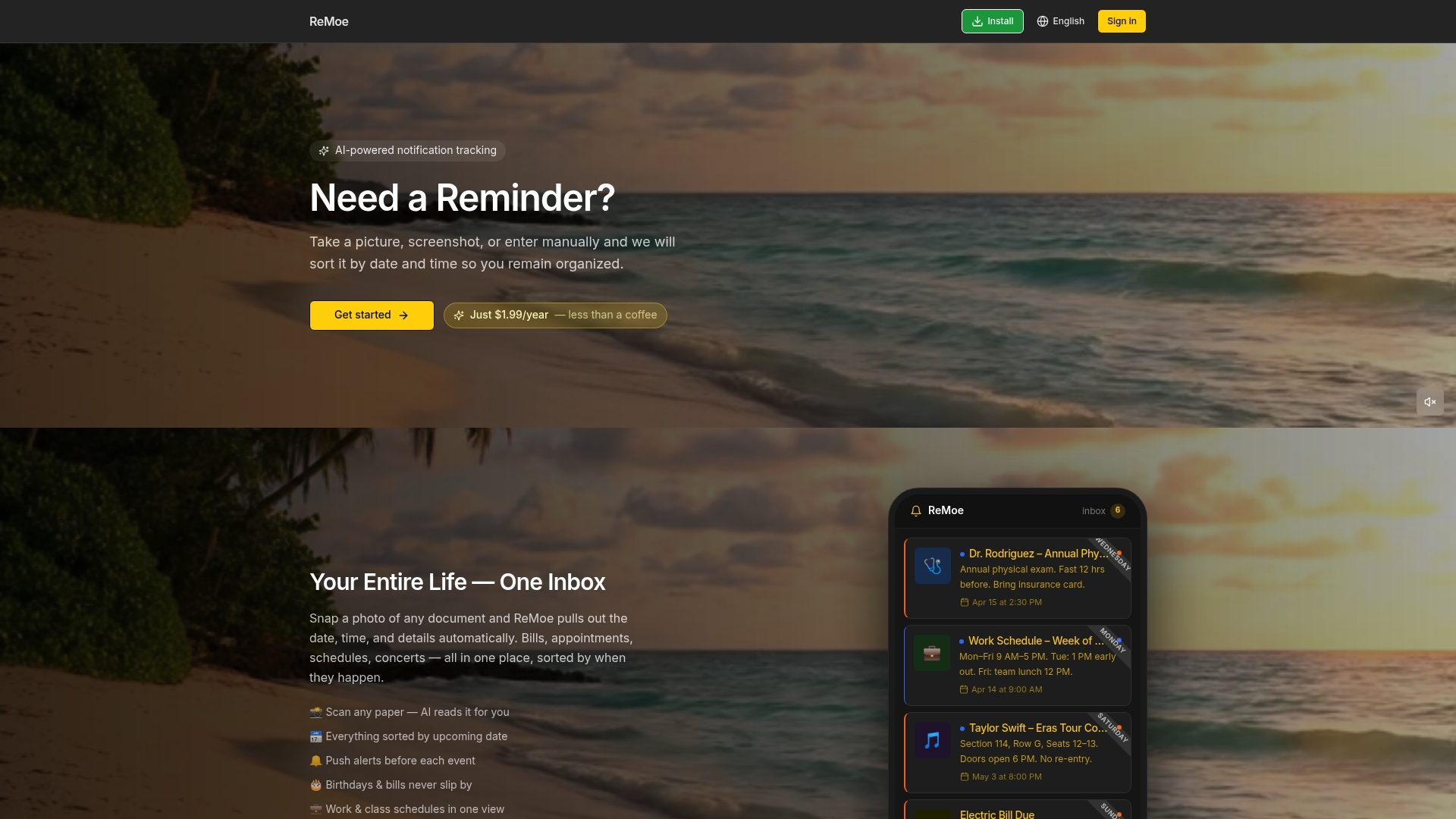
ReMoe brings your whole life into one place. Medication schedules, bill due dates, kids' school events, recurring appointments, and follow-up alerts all live in a single app designed for exactly the kind of everyday reliability this article is about. There is no need to toggle between Google Calendar, Apple Reminders, and a separate health app. The ReMoe AI Reminder App handles recurring reminders and advanced notification timing with the kind of flexibility that busy parents and seniors actually need. Check out ReMoe pricing to find a plan that fits, or visit ReMoe to see everything it can do.
Frequently asked questions
How do I make sure reminders notify me even if my phone is silenced or in Focus mode?
On iPhone/iPad, you can allow Reminders to access alarms in device Settings, which means Reminders alarms on iPhone/iPad will still fire even when the device is silenced or a Focus mode is active.
What time do all-day reminders typically alert me?
Default all-day reminder behavior on Apple Reminders sends the notification at 9:00 AM when no specific time is assigned, and Google Tasks follows the same default.
Can I set up repeating reminders for bills or medication?
Yes. Recurring reminders in Google Calendar/Tasks let you set alerts to repeat daily, weekly, monthly, or on a custom schedule, though you should review each platform's limits on editing or restarting a recurring series.
How do medication reminder follow-ups work?
Medication reminder follow-up in Health app sends a second prompt approximately 30 minutes after the original alert if you have not logged that you took the dose, acting as a safety net for critical medications.
What happens if I remove a recurring reminder?
If you stop a series in Google Tasks, recurring reminders limitations in Google Tasks mean you cannot re-enable that series and must create a brand new one from scratch to restore the repeating behavior.